page-banner-shape-1
page-banner-shape-2

Tutorials

Sending Appointment Reminders

Sending Appointment Reminders

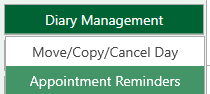
To access reminders, Open the practice diary > Open Diary Management > Select Appointment Reminders

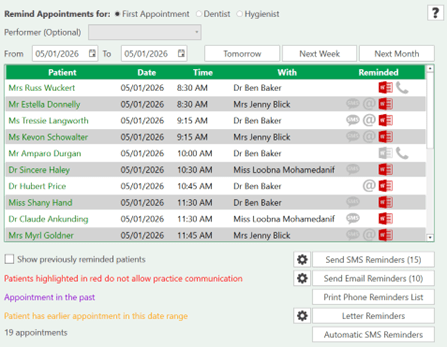
When accessing the reminder list, you select the date range of appointments to remind

This shows patients with appointments on the 05/01/26.

There is a total of 19 patients, view each patient by selecting the ‘Print Phone Reminders List’.

Of the 19 patients, 15 have consented to SMS.

Select to send the SMS reminders using the appropriate template.

The messages will then be sent, use the phone list to contact patients that have not consented or do not have SMS / email.

Tick ‘show previously reminded patients’ and the display will update with a black icon to show the previous communication method

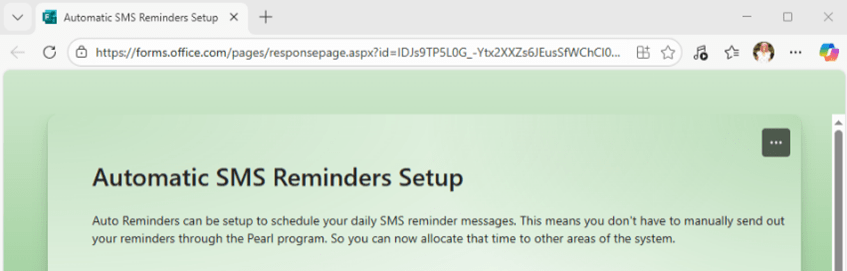
Alternatively, this whole process can be automated and would not require any staff members to run the report and send the communication. To do this select ‘Automatic SMS Reminders’ this will take you to a webpage to submit your request

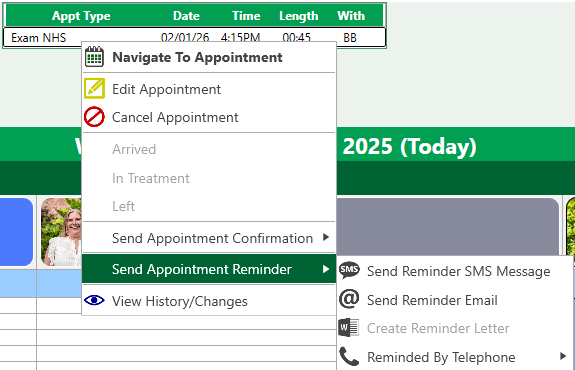
Sending Individual Appointment reminders from the diary

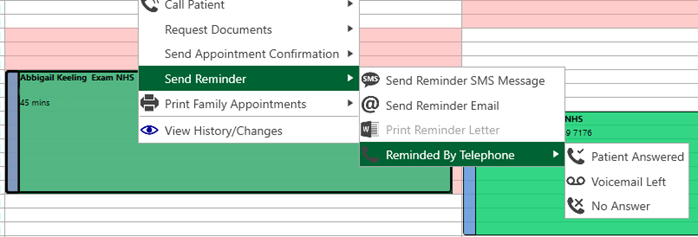
Select the patient you wish to remind > Right click on the appointment block > You can select to SMS email print a letter or mark as manually reminded by telephone call

Or Patient Snapshot

Right click on the patient’s planned appointment and select to send Appointment reminder as above