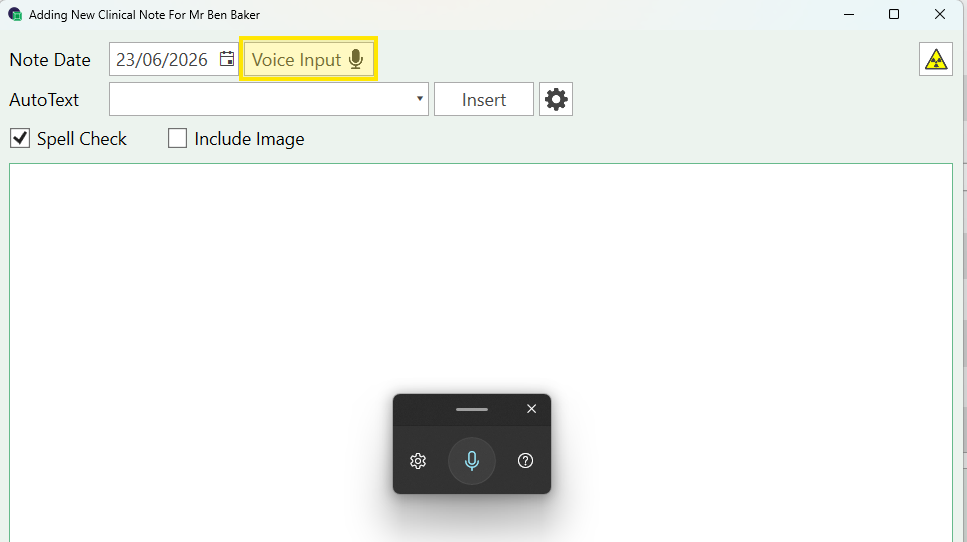
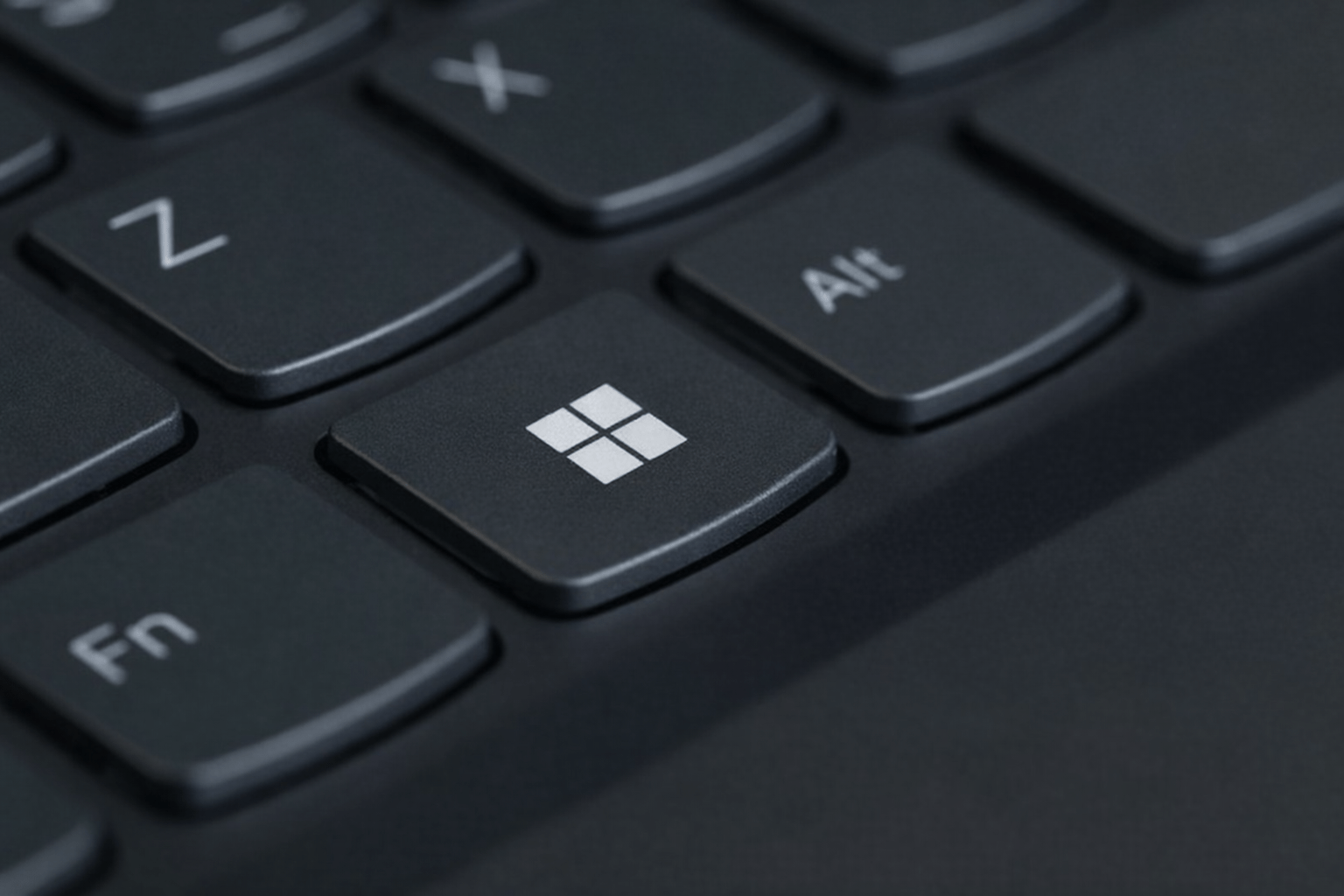
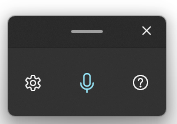
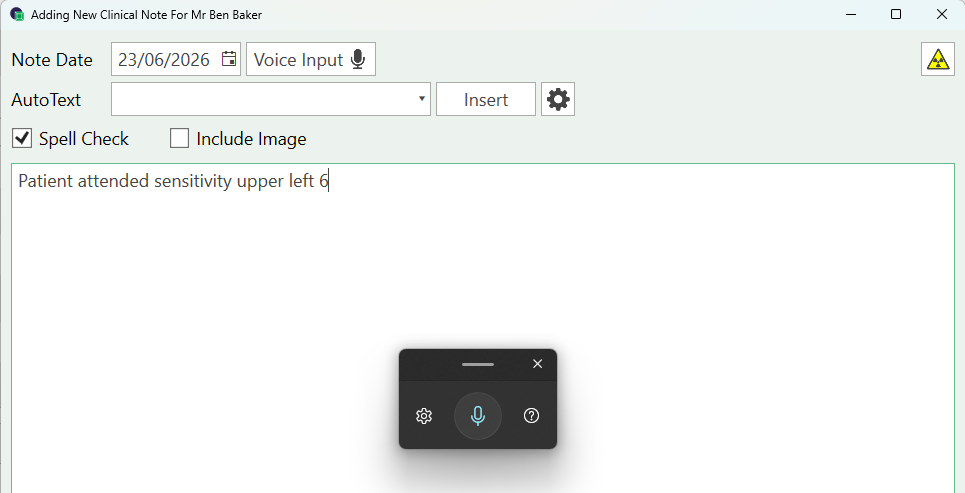
Speech To Text You can use your voice to write notes in Pearl on certain devices.You will need a microphone, or a lapel mic, you can also use the in-built microphone in a laptop or computer. Select the "Voice Input" option on the clinical note.Alternatively, on your keyboard, select the Windows key and at the same time press the H key. This will open an onscreen recording tool, as pictured below Make sure you are in a text field e.g Clinical Notes, and the microphone is highlighted in blue, this indicates it is listening and ready to scribe. Speak into your microphone and the details will be scribed into the clinical notes area. This function can be used for any text field.