page-banner-shape-1
page-banner-shape-2

Tutorials

Welcome to Pearl Dental

If you haven’t used the system before, you’re in the right place.

Here is an introduction and overview on how to sign in and what the buttons to click.

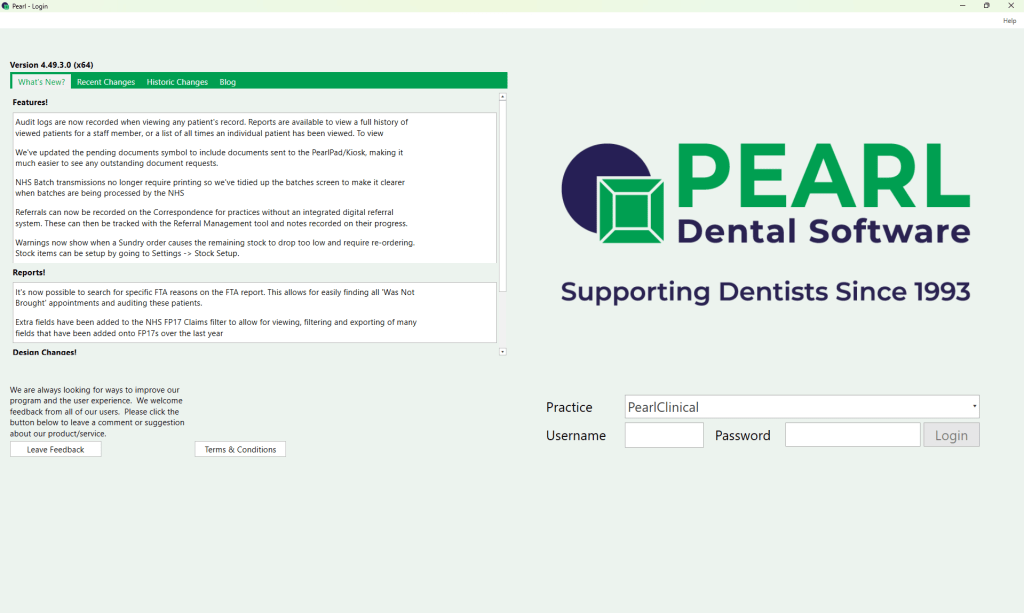
Open Pearl by double clicking on the icon on your desktop. If you can’t find it, try searching for it in Start menu (bottom left of the screen).

Once Pearl has loaded select the practice you are working at in the right drop down box. If you have one site, it will automatically be selected for you. Use your Username and Password to log in.

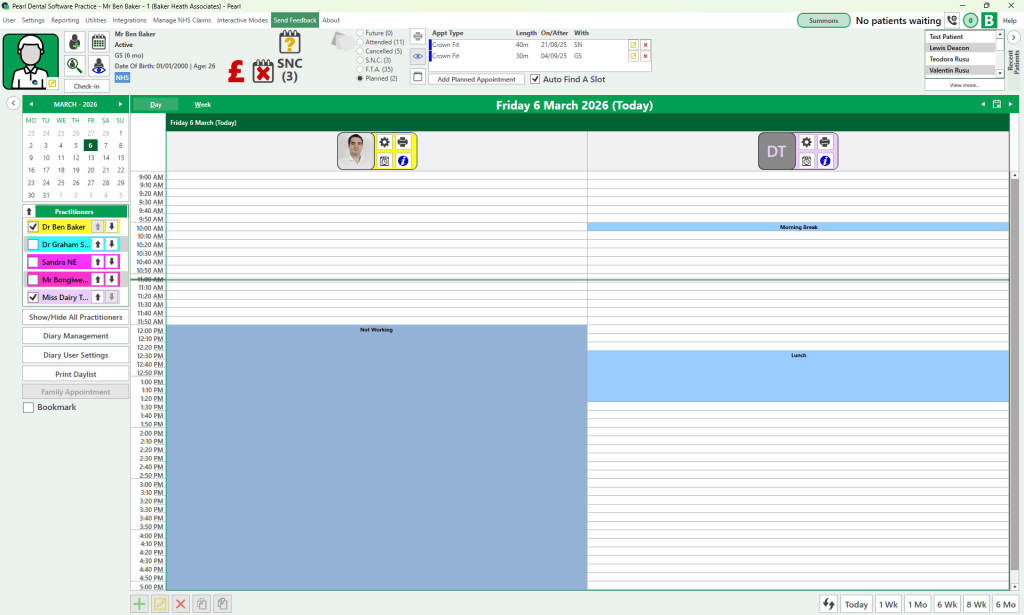
Pearl automatically opens up into the appointment book or the dashboard.

Add New

This icon will add a new object such as appointment, clinical note or template.

Edit

This icon will remove or delete an object such as appointment, patient record detail like 'Dentist' or clinical note.

Delete

This icon will remove or delete an object such as appointment, patient record detail like 'Dentist' or clinical note.

Settings

This icon will take you to the settings or set up page.

Remote Support

Remote Support is an excellent tool we use to connect to your computer. Once connected we can fix any software issues you’re having or help you work your way around the system if you’re unsure on how to do something. Being able to see the issue means we can identify the problem and fix it much faster then if you had to explain what you were seeing over the phone or wait for us to drive to your practice.


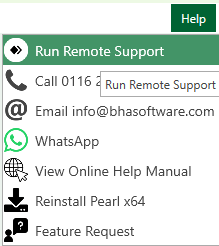
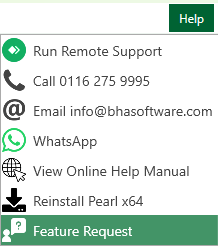
1) Remote support is accessible from most areas of the system. Find it in the top right corner of your screen and click on the "Help" button then clicking "Run Remote Support" to open.

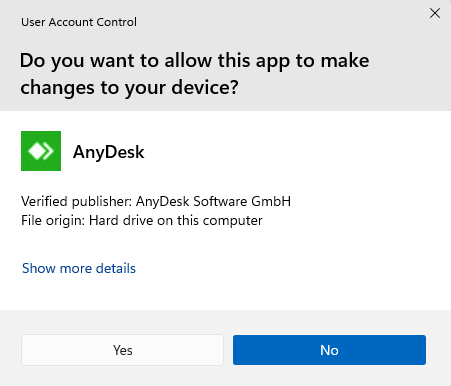
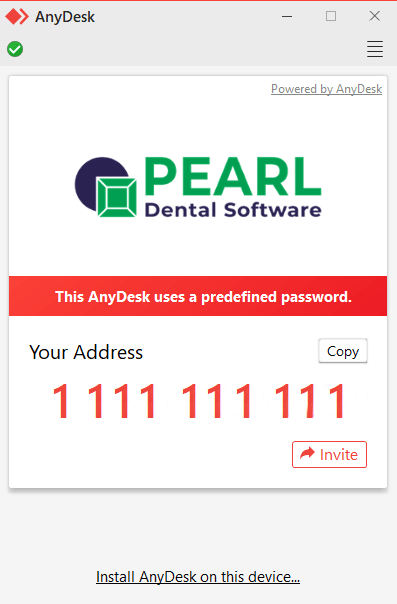
2) A dialog may now open and will look something like the one to the one below. Once you click "Yes". It will load a new window like the one to the right. You will need to read out Your Address number (the number showing on your screen). After you read it out we will be able to get connected to the computer.

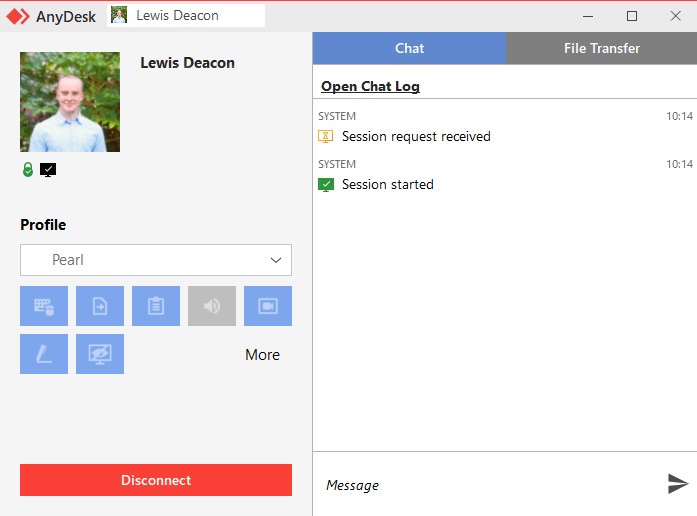
3) A pop-up will appear at the bottom right of the screen to show that we have connected to your computer. We can now see what you see on your computer screen.


Sometimes computer permissions mean we need your help to click as we’re limited on what we can do when a computer’s setting is overriding our connection.

Please note: We do sometimes stop your ability to use the mouse – sorry. We only do this if fixing the computer is urgent or the computer is acting in an unexpected way.


Feedback Form

Where to find the Feedback form. We have forms that cover the software as a whole, your recent training day or a call you’ve had with our support team. If you’ve got any ideas on new features, you can tell us through your program or by going here. To discover the extensive features of Pearl and how to access them go here.


1) Go to Send Feedback in the bar at the top of the screen.

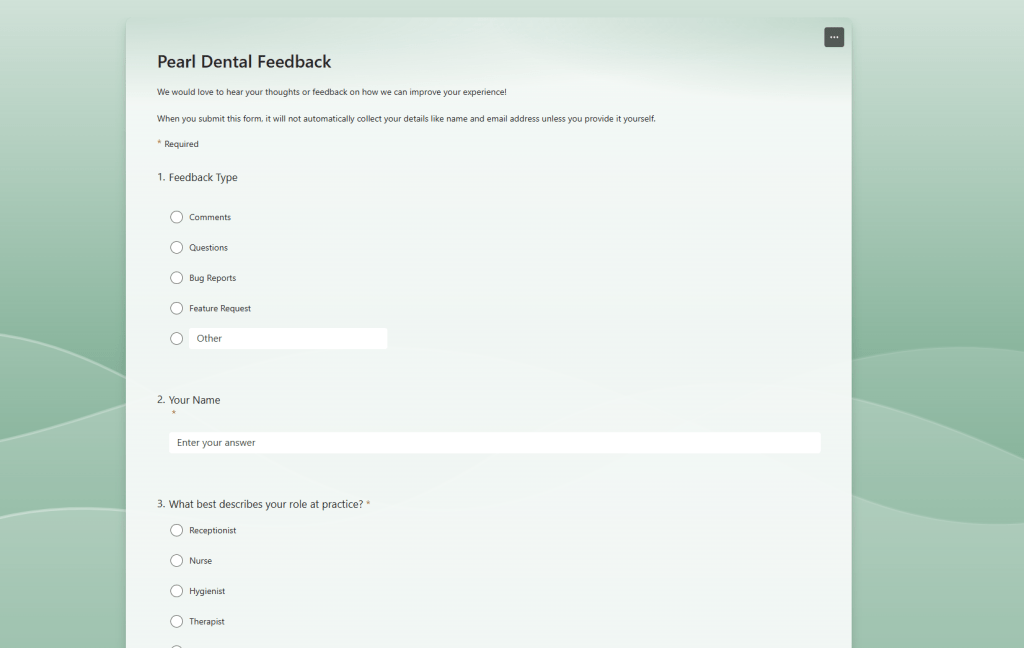
2) Your web browser will now open to a Microsoft form. Select the options that best fit who you are and what you want to leave feedback for. If you want to leave a feature request, please see below for the steps on how to complete that.

Feature Request Form

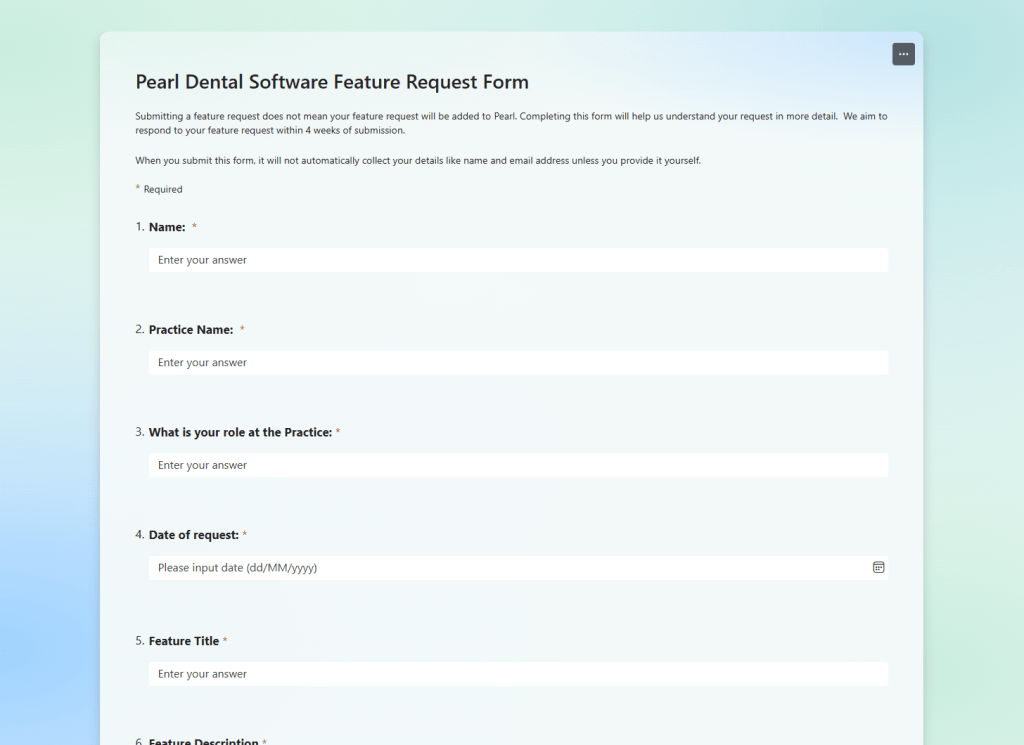
Where to find our feature request form. If you’ve got any ideas on new features, anything you would like to request to be added to pearl you can tell us from here. 

1) Go to the "Help" button in the top right of the screen. Once you click on that a dropdown will come down. From that drop down and select "Feature Request". 

2) Your web browser will now open to a Microsoft from. Select the options that best fit who you are and what feature you are requesting for to be added to Pearl.