page-banner-shape-1
page-banner-shape-2

Different ways to record clinical notes in Pearl

Different ways to record clinical notes in Pearl

Different ways to record clinical notes in Pearl

Voice Input

You can use your voice to write notes in Pearl on certain devices.

You will need a microphone, or a lapel mic, you can also use the in-built microphone in a laptop or computer, if there is one available.

SpeechToTextClinicalNotes3

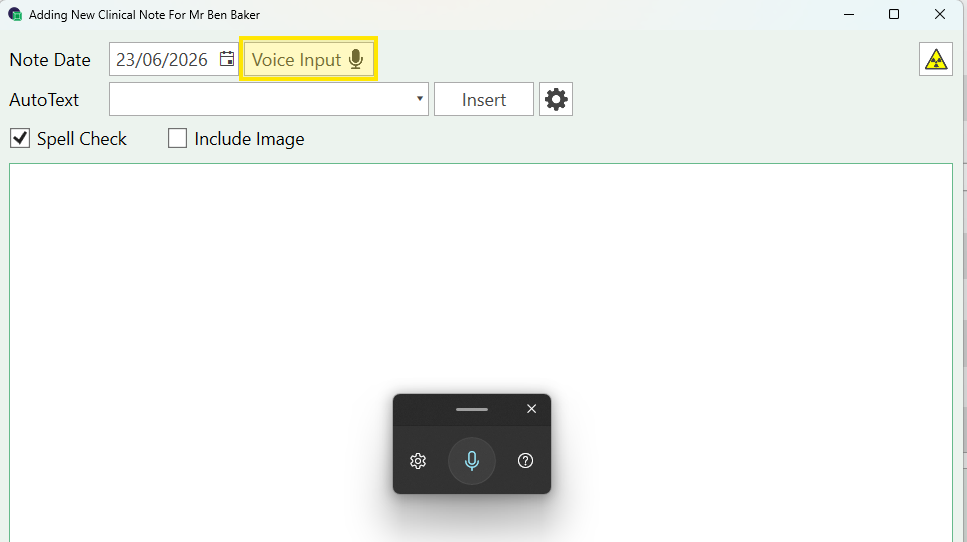
Select the "Voice Input" option on the clinical note.

Alternatively, on your keyboard, select the Windows key and at the same time press the H key.

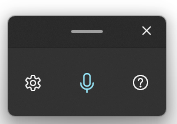
This will open an on-screen dictation tool, as pictured.

Make sure you are in a text field e.g Clinical Notes, and the microphone is highlighted in blue; this indicates it is listening and ready to scribe.

Autotext

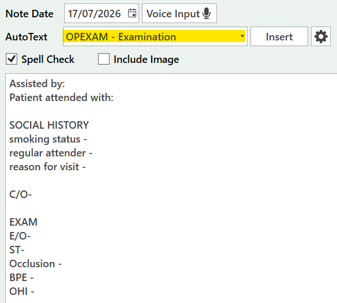
Templates are selected from the dropdown menu OR enter the template name ‘OPEXAM’ and the template will populate the note screen.

This gives the opportunity to add the relevant notes next to the titles.

Avoid prepopulating fields e.g. ST - NAD this is not a contemporaneous method of note recording

These can be added or amended in Settings > Clinical Notes > AutoText Templates

Questionnaire Templates

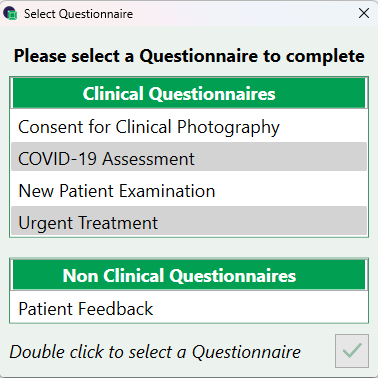
Questionnaire templates can be accessed from the icon on the notes page

Available questionnaires are displayed, double click or use the   

to select.

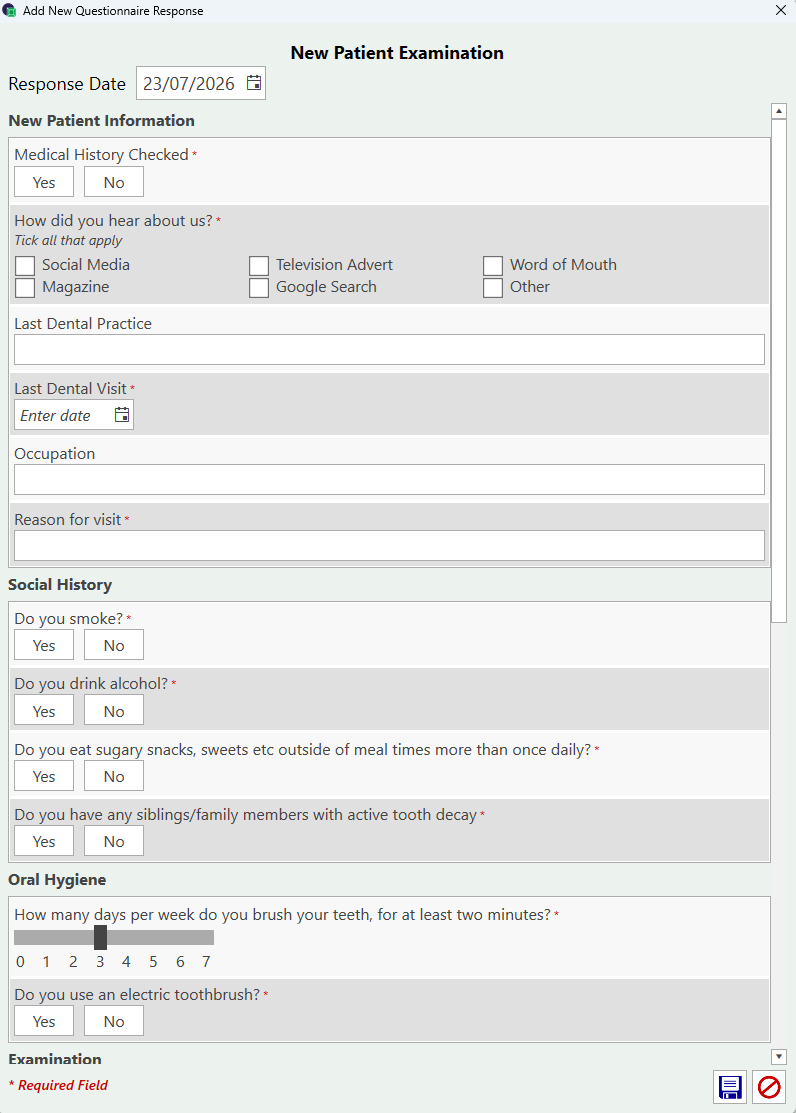
The template will present with a series of dropdown options, tick boxes, RAG ratings and more to make note writing contemporaneous and quick.

What’s more the templates are fully customizable! Any question/statement needed for comprehensive notes, without having to type up each time.

These can be added or amended in Settings > Clinical Notes > Questionnaire Templates

New Patient Exam Template
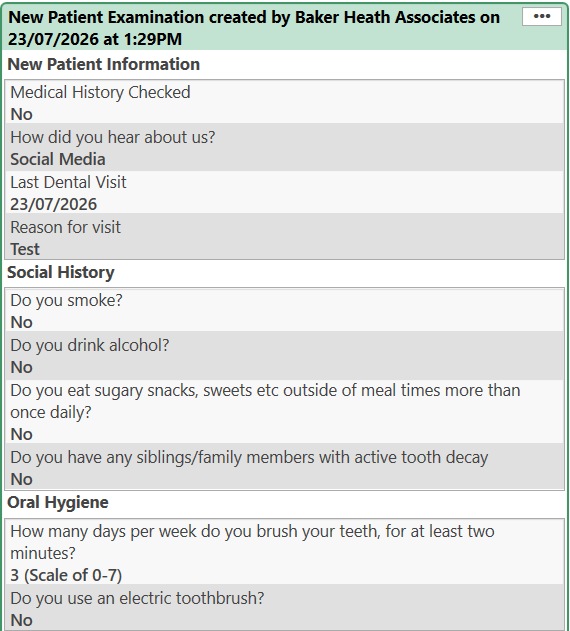
Completed Note
Clinical Note Questionnaire Template
Clinical Note Questionnaire Answers

Draft Notes

Draft notes can be turned on from Settings > Practice Settings > Save Draft Notes

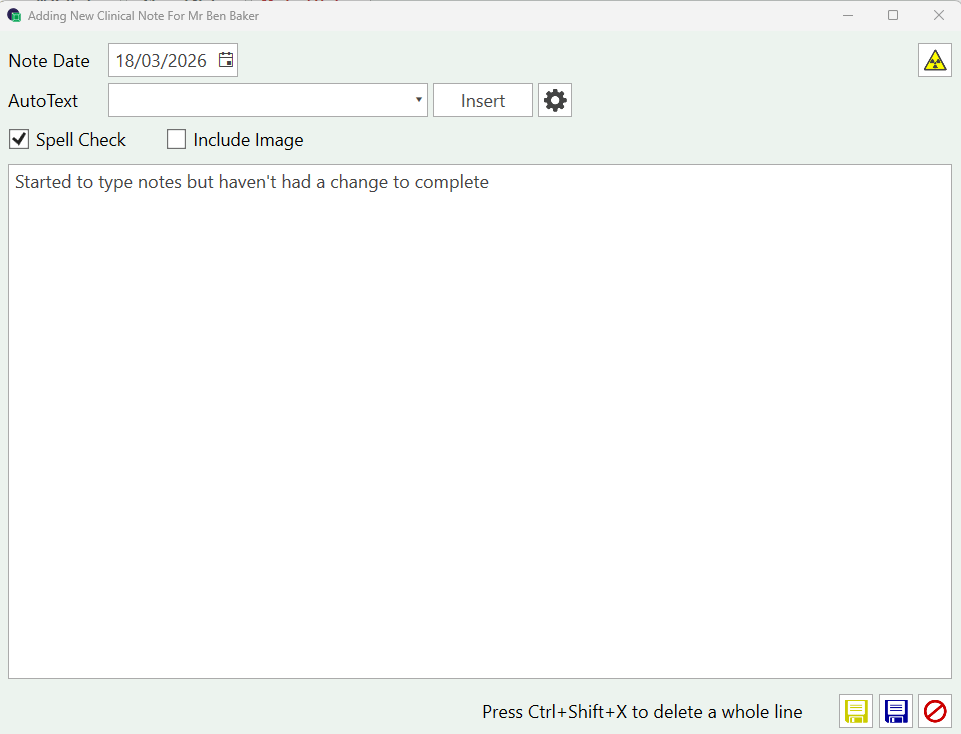
When typing clinical notes you will notice a new YELLOW save icon

Use this if the notes are not complete, you wish to save as a draft and return later.

The note will be saved in yellow to indicate it is a draft

You can edit this note to complete the details. You can also see how many notes you have in ‘draft’ status from the icon at the top of the page.

Double click to open the Draft report, click on '…' to open the record

Need a Refresher?

Whether you're onboarding a new team member or simply want to make the most of Pearl's features, we're here to help.

Book a free 30-minute training session with one of our team, and we'll tailor it to your practice's needs.