This feature allows searching for patients using very specific search fields and filters. You can access it from Reporting > Patient Filtering
Select "Yes" to the message that says "The Filtering windows may take a few minutes to load".
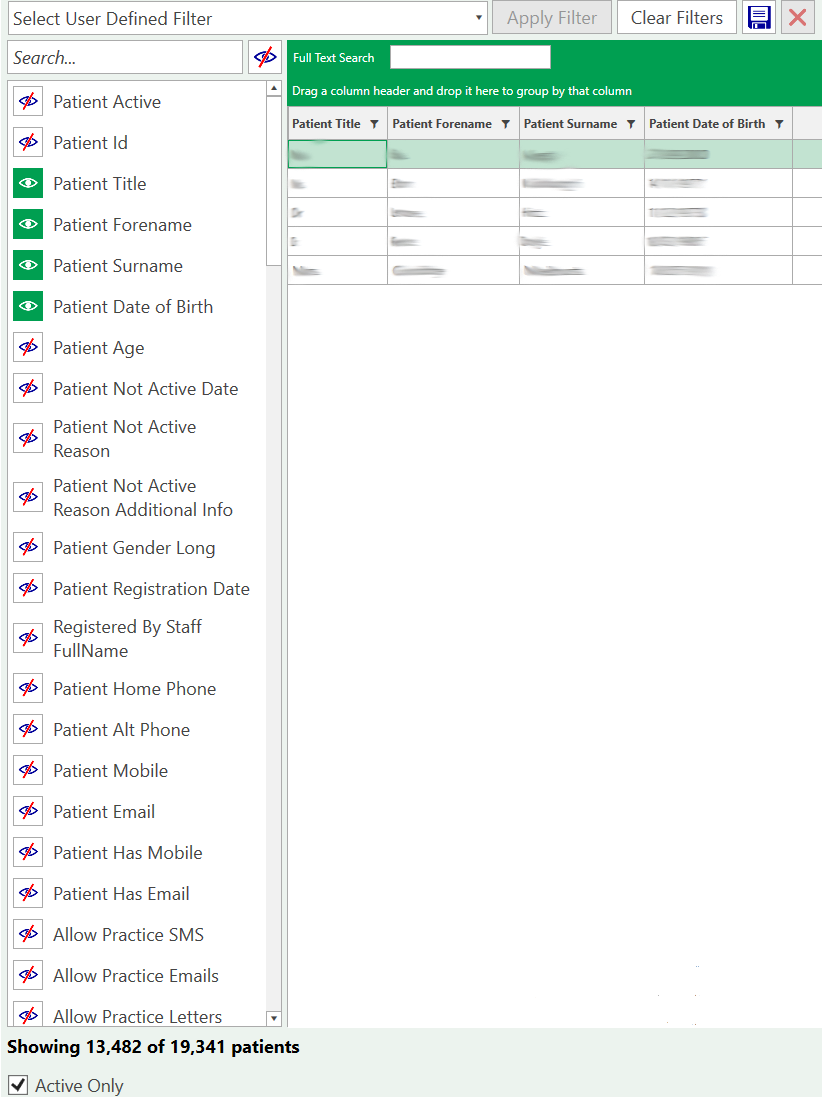
When the filter opens, you will see 4 columns displayed, these can be selected or closed from the options on the left
The information can be filtered using the icon at the top of the column
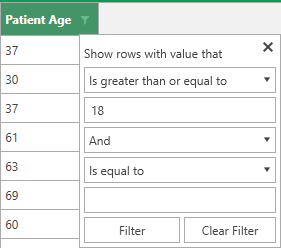
Select the filters to add further parameters to the search
Select the filters to add further parameters to the search. e.g set patient age to display 18 years old and over
The filter icon displays green to indicate a filter has been set
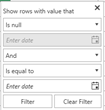
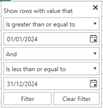
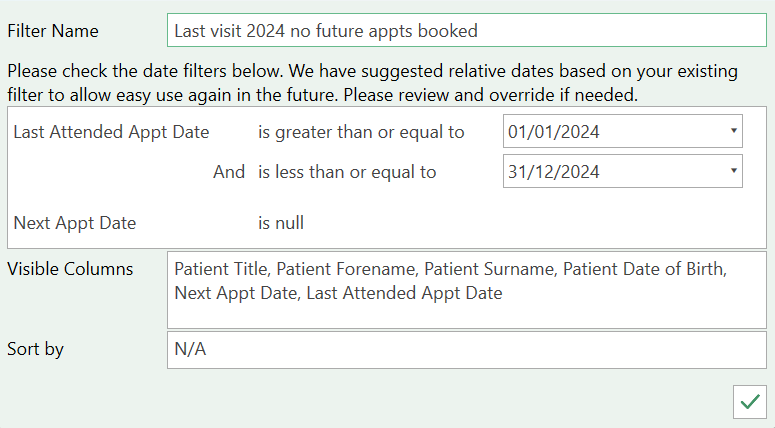
This filter is looking at patients that do not have a future appointment booked and have attended an appointment in 2024
We can go ahead and save these settings and filters by selecting the save icon.
Give the filter a name and save the setting with the
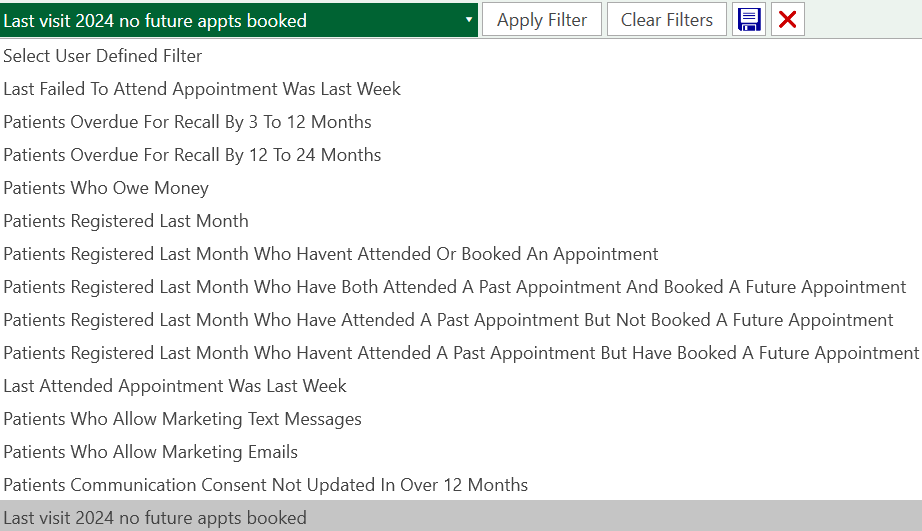
This is now showing in the saved filters and is available to reload and Apply
Once you have applied the columns and filters you will see the number of patients selected (1,491) The patients on the list can be contacted via letters SMS or email using the following icons
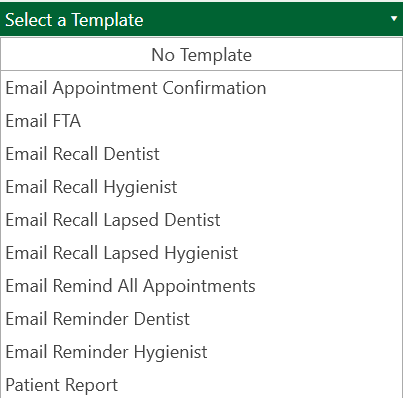
Select the communication format and choose the template from the dropdown menu
Select to send when you have chosen the filter
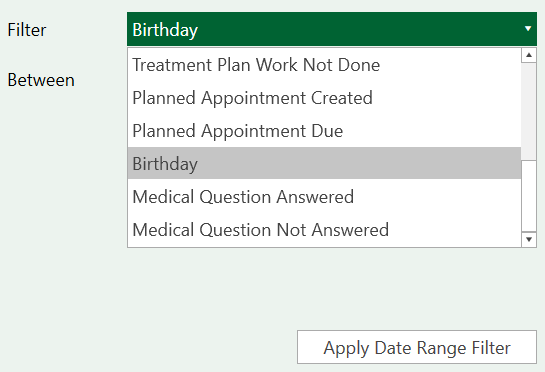
There are further filters that can be selected. Use the calendar icon to display the dropdown menu
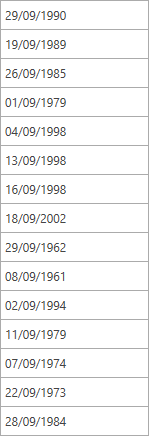
In this example, I have selected the patients who have a birthday today. This will filter the patients who have a DOB in September.