page-banner-shape-1
page-banner-shape-2

Tutorials

Prescription Audits

Prescriptions

Private and NHS prescriptions information can be added to Pearl. Private prescriptions can be printed.

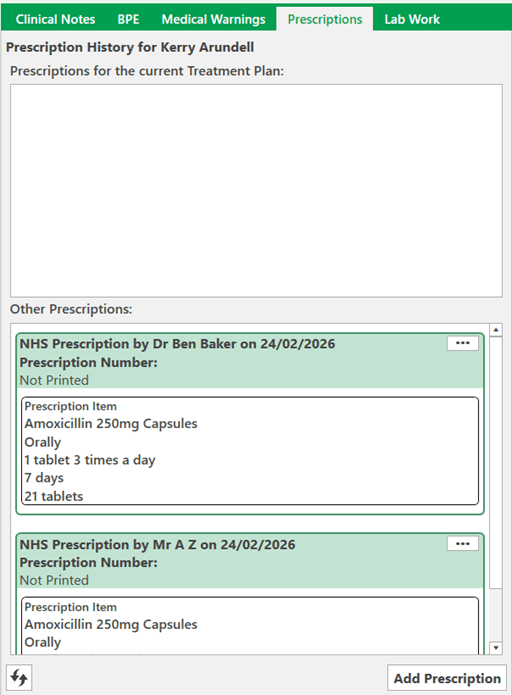
You can Access Prescriptions from the Charting tab and Prescriptions on the right of the screen. You can see the history of prescriptions for the patient and Add a Prescription.

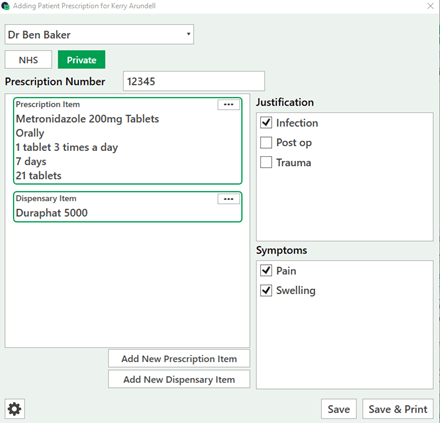
Once you click 'Add Prescription' it will come up with a new dialog to either select an prescription or create a new one 

To add a prescription:

Click on 'Add New Prescription Item' or 'Add New Dispensary Item' > Select the item you are prescribing the patient > Select the save button. 

This will add a new prescription for the patient.

Once the prescription has been added select the Prescriber, Justification, Symptoms and Prescription number (for NHS practices).

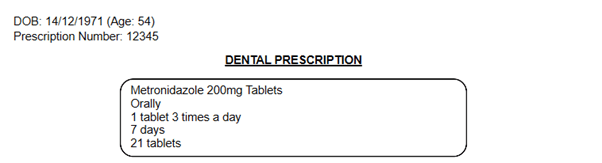
Finally select save or save and print and you will be able to see it in the prescription section.

Prescription Audits

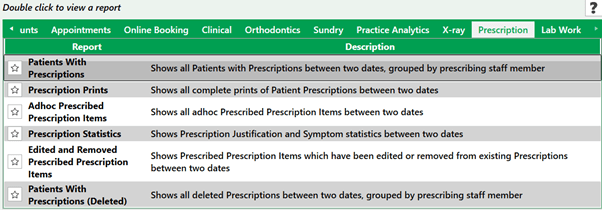
To view the audits for prescriptions you can go to Reporting > Report Library > Prescriptions (if you can't see it you may need to use the arrows to scroll across). From here you can run a number of audits.

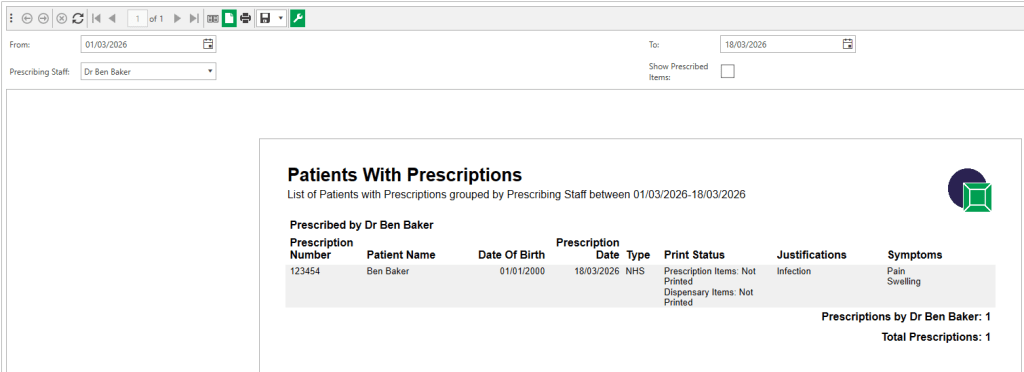
The main report used for prescription audits is the 'Patients With Prescriptions'. This can be filtered by date range the prescriber.

The report shows:

Patient name, DOB, Prescription Date, Type, Print Status, Justification and Symptoms.

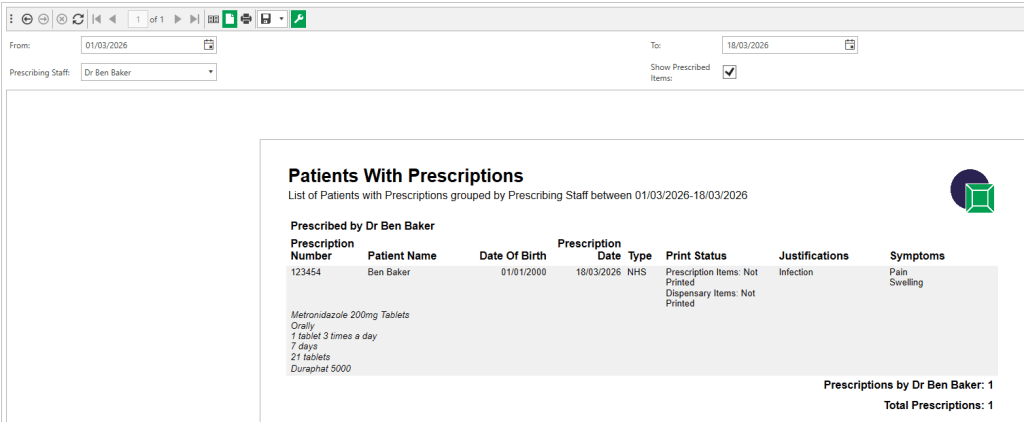
The report can also show the items prescribed by ticking the box.